A/B testing in emails is a method of comparing versions of an email, to see which one performs better with your audience.
How it works
You create your A/B test audience in Campaigns
You create two or more versions of an email
You change one specific element between them
You send each version to a subset of your email list
You measure performance based on a goal metric
The better-performing version is sent to the rest of the list (or used for future campaigns)
Common elements to test
Subject lines (most common)
Preview text
Sender name (“Company” vs. “Jane from Company”)
Email content (copy length, tone, images)
Call-to-action (CTA) (button text, colour, placement)
Send time or day
Personalisation (for example “Hi Sarah” vs. no name)
What works best
Open rate → often used for subject line tests
Click-through rate (CTR) → used for content or CTA tests
Conversion rate → purchases, sign-ups, downloads
Unsubscribe or bounce rate → quality check
Setting up A/B testing in Radar
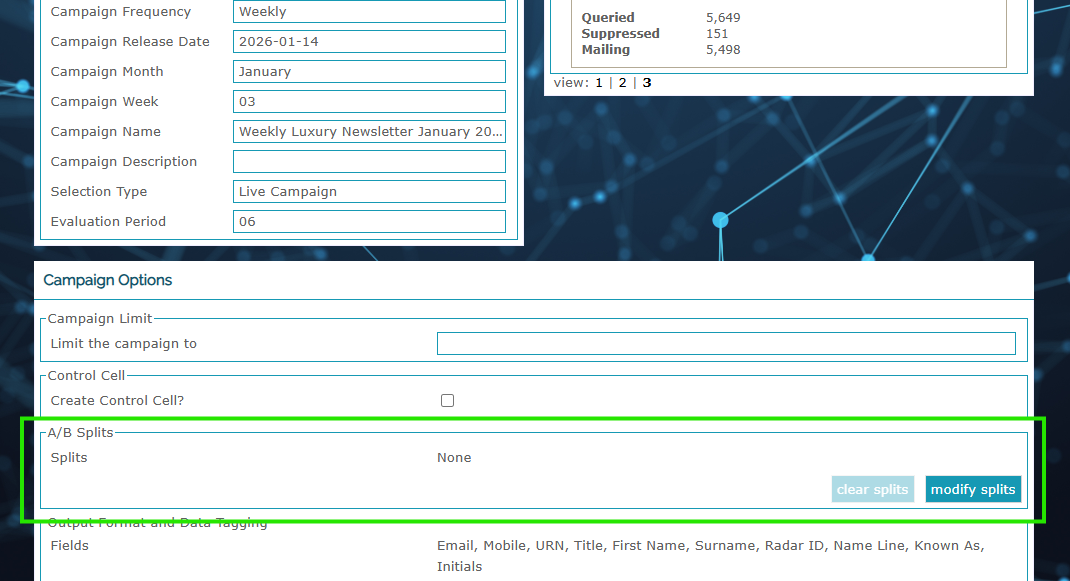
Setting up A/B testing is actually completed when you set up your campaigns. When you set up your campaign and save it, you can at this point decide how you'd like to A/B test this segment, alongside adding in the campaign name/release date etc:
Once in the splits configuration, you can create as many splits as you wish, and divide the split % in any way you wish, ensuring that you name them in a way that ensures that you remember which references which split. You can also lock one split % and it'll adjust the others accordingly:
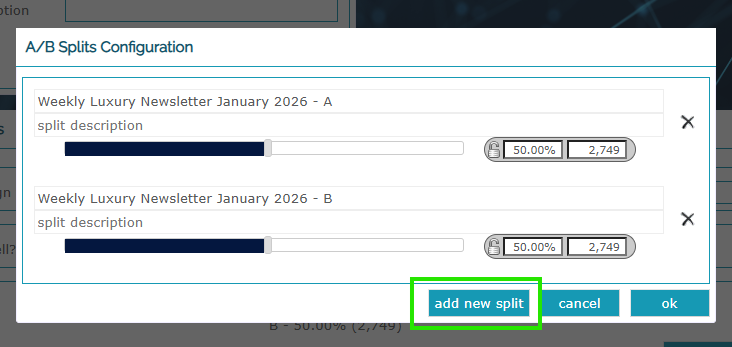
You can then click OK and then continue to save your campaign - now when you head to the Emailer to create your adhoc email, you can choose the split variation for each email variant. If you create 3 A/B splits, you can create the 3 versions of your email, copying the html and making your test variations as needed.
Once you have the results of these campaigns, you can then send the best performing wider audience.
Limiting your test audience
If you do have a small test audience you'd like to A/B test before releasing to a wider selection, remember to Limit the Campaign to a set number, for instance 1,000, to test before the winning test is sent. This can also be found in Campaign, just above the A/B testing segment split.
Was this article helpful?
That’s Great!
Thank you for your feedback
Sorry! We couldn't be helpful
Thank you for your feedback
Feedback sent
We appreciate your effort and will try to fix the article