The RADAR system has two different approaches for managing automations; triggered, which rely on external events to prompt a send, and recurring, which operates on a schedule to send communications at the correct time.
This guide will cover setting up the selection for a recurring email and upgrading it to the email tool. The email designer will not be covered in this document.
Recurring
Recurring emails are run on a schedule against a set of criteria usually referencing a date. Each time the schedule is run, the selection will be refreshed to include any individuals who currently meet the criteria. Example of recurring emails are things like:
- Anniversary of booking – 11 months since last booking, suppressing any live bookings
- Welcome Home – 3 days after return
- Pre-departure – 6 weeks prior to departure
Targeting
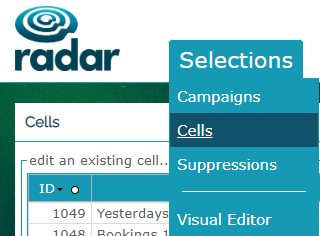
To create a recurring email, you will need to use Selections > Cells, this section works similarly to building a campaign selection but returns counts of deduped individuals without applying any marketing criteria. Any marketing filters are applied when the cell is used by another area of the system, e.g. sending an email.
Cells, unlike campaigns, only save the criteria of your selection and not the underlying data. The matching individuals are returned once the cell is in use by another part of the system.
Cells are for inclusive criteria; you can’t apply suppressions when selecting the individuals to include. If suppressions are required, they are applied using the Visual Editor which is covered under Suppressions heading below.
Upgrading
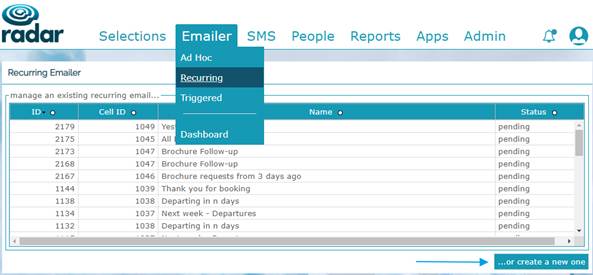
To associate your cell with an email, navigate to Emailer > Recurring, and click the ‘… or create a new one’ button at the bottom right-hand side of the Feedbox. A list or cells is returned. Selecting a cell will upgrade it to the email design window.
Variants
Emails in RADAR can contain conditional content, where the underlying data for a given contact determines the content in the email they receive. For example, a guest returning from house X, can receive copy and imagery specific to that house in the same email as a guest returning from house Y who receives different images and copy. Setting up Conditional Content can be found in more detail in this guide.
Testing & sign-off
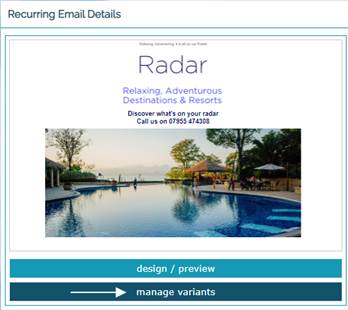
Testing recurring emails is slightly different to Ad hoc. As recurring emails can be setup without any data present, tests are generated per variant rule, allowing each to be tested separately. To test emails, click the ‘manage variants’ button, and either test all, or click a thumbnail to test separately.
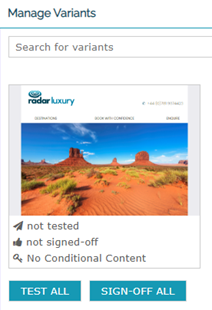
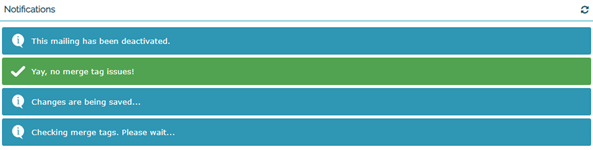
As data doesn’t always exist when a recurring email is setup, merge tag data won’t be present in any tests. Instead, the toast notifications should be used to ensure there are no issues. A successful merge tag setup will result in a message of “Yay, no merge tag issues!”
Signing off emails, also happens from the ‘manage variants’ area.
Suppressions
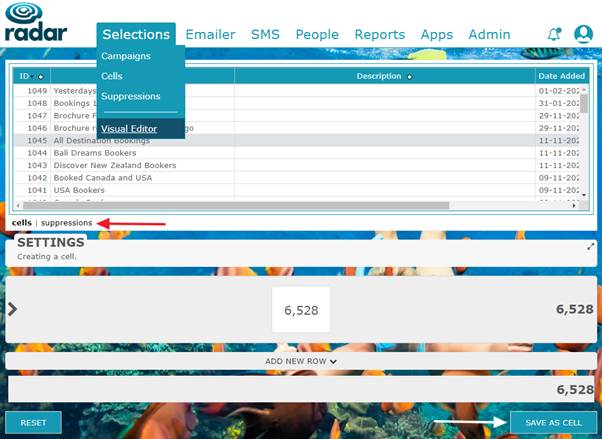
Once you have your selection criteria saved as a cell, if a suppression is required it can be applied using Selections > Visual Editor. In this section you will be presented with a feedbox containing all Cells. Clicking a specific cell will drop it into the count area and calculate the number of contacts that meet the cells criteria.
The Feedbox view can be switched to present a list of suppressions. Clicking a suppression from the list will apply it to your count.
The resulting selection can be saved as a Cell and used via the Emailer > Recurring section.
NOTE: The Visual Editor is a powerful selection tool. There are a number of additional features, such as variable selection types, recursive Cells and location-based joins. Advanced Visual Editor functionality will be covered in a separate guide.
Was this article helpful?
That’s Great!
Thank you for your feedback
Sorry! We couldn't be helpful
Thank you for your feedback
Feedback sent
We appreciate your effort and will try to fix the article