When it comes to targeting your email, DM or SMS campaigns we have many standard criteria options, as well as the option of groupings based on your business needs. You can also extract data via this Selection for your sales team, if needing contacts under set parameters.
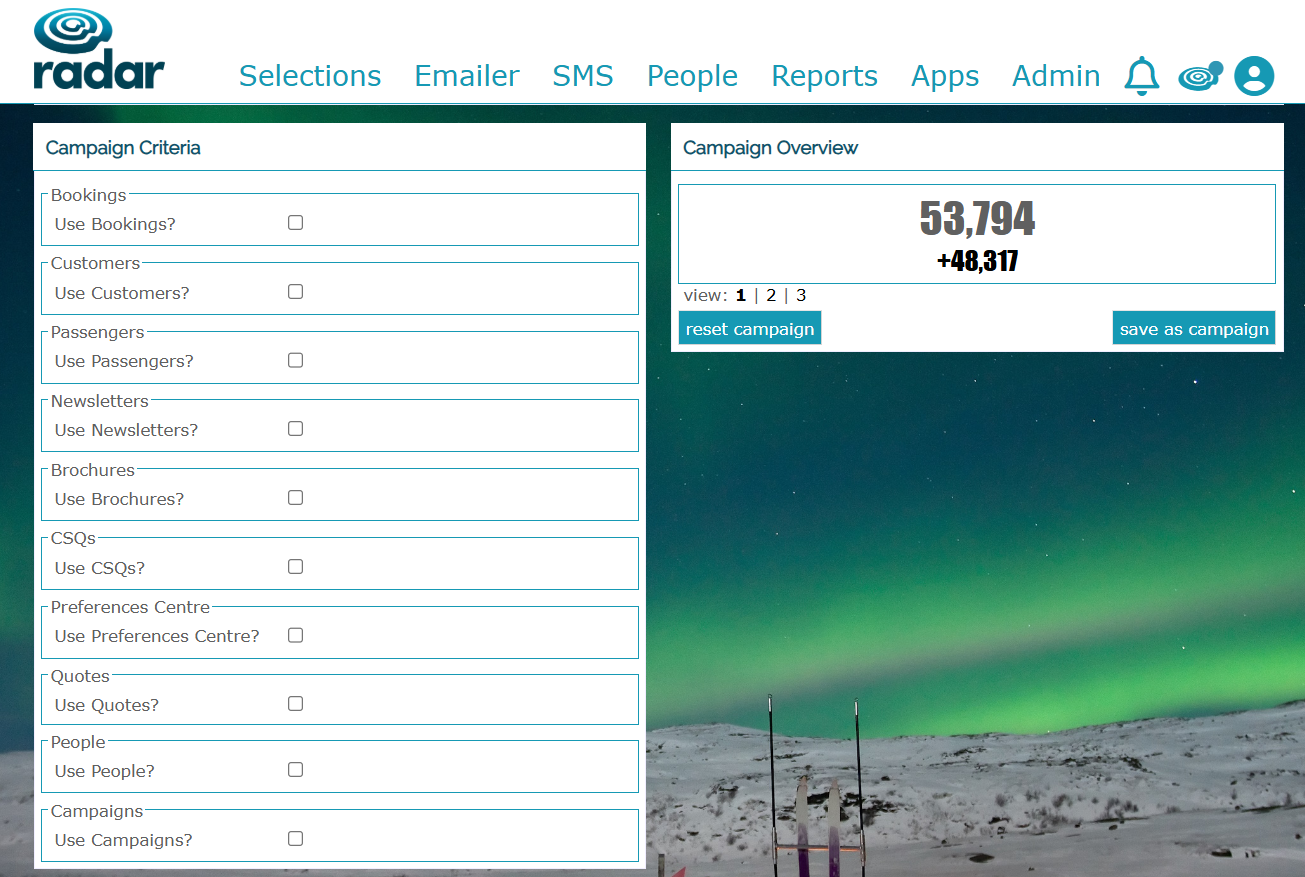
To set up a campaign selection for this purpose, click Selection>Campaign. At the start of the Campaign audience selection you will be able to see a total all of the contactable data on the righthand side under Campaign Overview - this number then changes as the campaign criteria is narrowed down:
Campaigns will be split into operational and marketing messaging, so you may use different criteria based on which you are building out - for example using Booking data for operational emails around their departure date.
In Campaigns, you'll see the criteria breakdown that you are able to choose to create your audience, based on the data Radar holds on your contacts.
Some common targeting used in Radar:
- Bookings - these are your contacts with bookings attached. You can then use the Booking criteria to narrow down your audience in many ways - booking type, booking within set time parameters, peak holiday periods, number of previous bookings, PAX size, time of break etc
- Customers - some of this overlaps with Bookings, but this drills down more into the type of customer you'd like to target based on the profile we've built for them - how much they've spent with you, how many bookings they've had, who they travel with and the holiday type eg family/group bookings
- Passengers - Here you can target contacts by departure point, for example if your targeted campaign is for flights departing from one or two airports - choose people that have used those previously and contacts within set postcodes/areas! Is the campaign for cruises? Target passengers that have booked a cruise or showed an interest previously
- You can also use other criteria such as their CSQ answers, brochures they've requested, answers from their Preference Centre, all to hone down on the contacts you'd like to target in this campaign
You can select multiples from within the criteria targeting, so for example customers that have booked more than 3 times in the last year, are interested in city destinations and have spent x amount on family breaks. Each time you add more detail, you'll see you total contact number change, allowing you to understand when the criteria might be too specific!
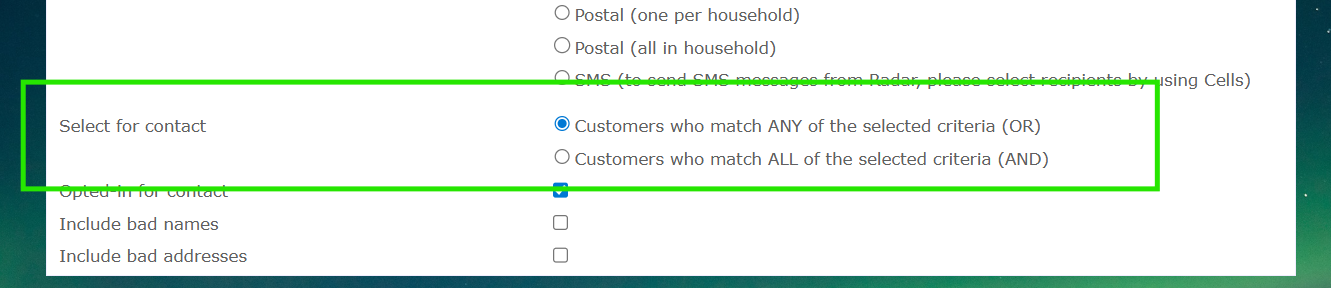
Using the OR/AND function, you can also select those who ALL criteria, or those who ANY of the criteria applies:
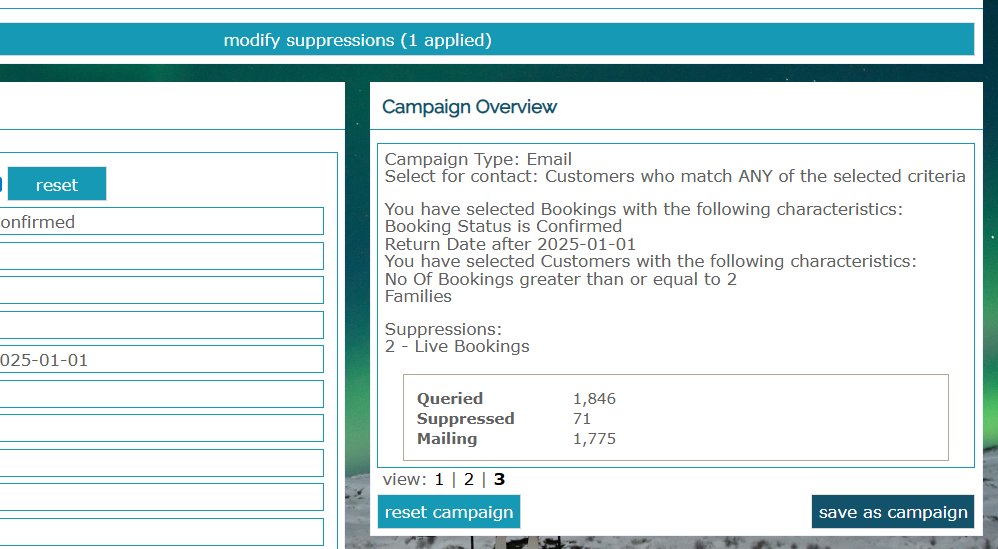
The Campaign Overview window allows you to tab through to see not only total number, but how each criteria addition has impacted positively or negatively on the total number of contacts: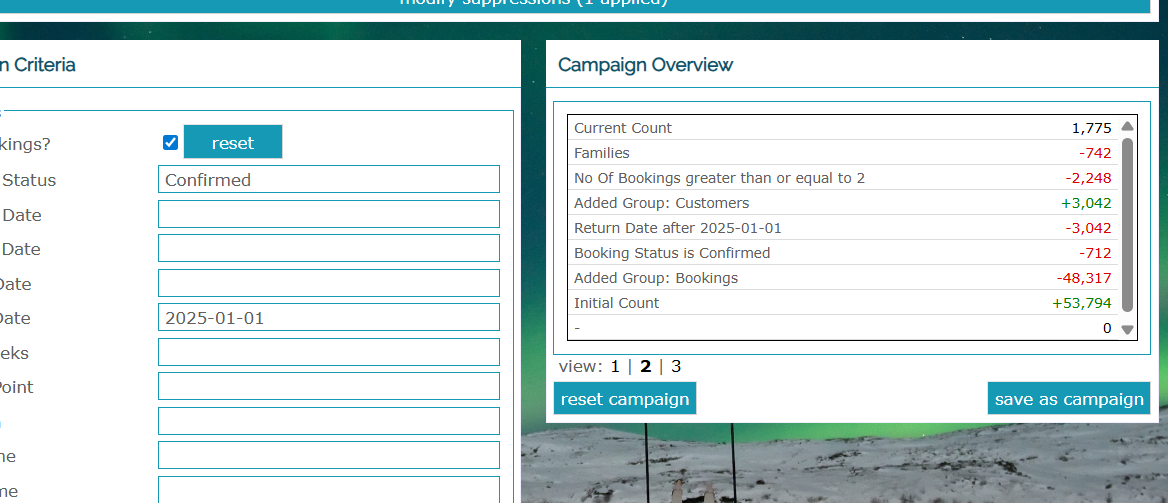
Setting up Campaigns for You
If you have some campaign objectives that are recurring and you'd like us to set up some flagged audience settings on your behalf, please raise a ticket in Freshdesk with the full campaign criteria. We can then set these up on your behalf.
Campaign Options
Once you have selected your criteria, you click save campaign and it allows you to choose some additional Campaign Options:
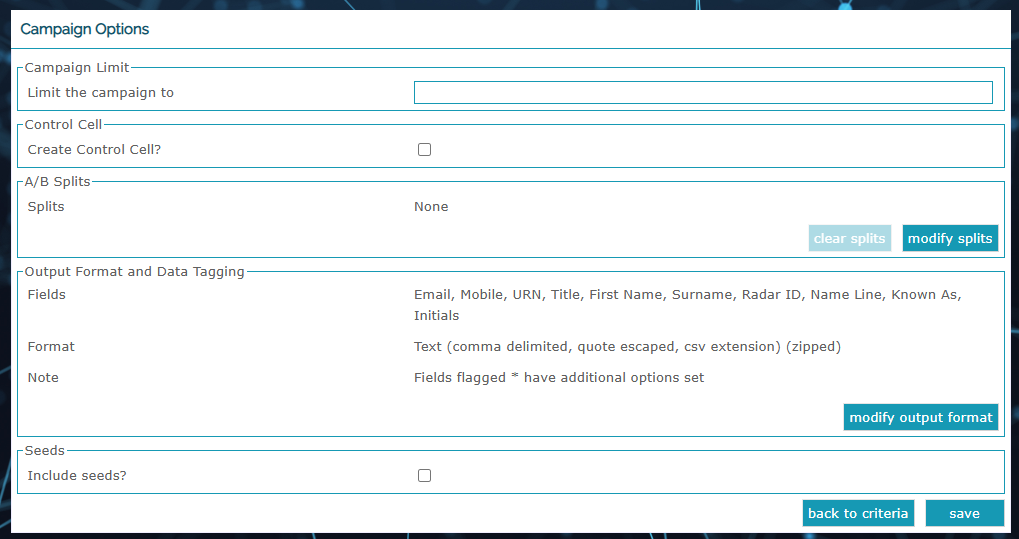
- Campaign Limit: You can limit your campaign to specific numbers - if you have 5,000 mailings to be posted, but have 8,000 contacts in your selected criteria, for example
- Control Cell: You can apply this in a number of ways - either auto, to create a controlled number of contacts to measure marketing against, or you can choose your percentage
- A/B Splits: Create an A/B test using splits of your email, to understand what approach performs best - testing copy, titles, content
- Output Format and Data Tagging: You can use this to include more information from the contacts, to drive dynamic content
- Seeds: You can add your seed list here, to receive a copy of your email/brochure request etc
Once all saved, your Campaign is now set up to use!
Was this article helpful?
That’s Great!
Thank you for your feedback
Sorry! We couldn't be helpful
Thank you for your feedback
Feedback sent
We appreciate your effort and will try to fix the article