Radar's Seed Manager allows you to set up Seed emails and Seed Groups, to test any emails or campaigns before they go live to your customers and/or prospects.
Using seed emails and groups with Radar helps you:
Improve deliverability: Identify and fix issues before sending to your full list
Get Sign off from stakeholders: Team members and managers can be added to seed groups, so that they can sign off on an email and messaging before it goes to customers
Add a new Seed email
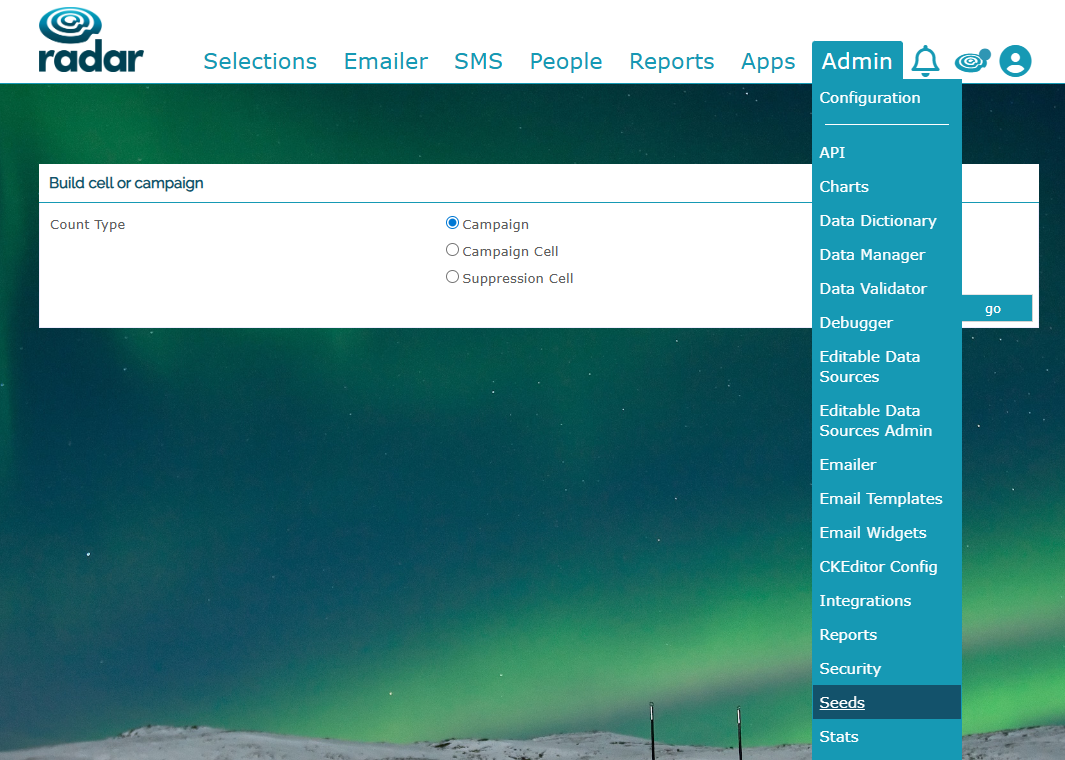
To add Seed emails to Radar, go to Admin>Seeds:
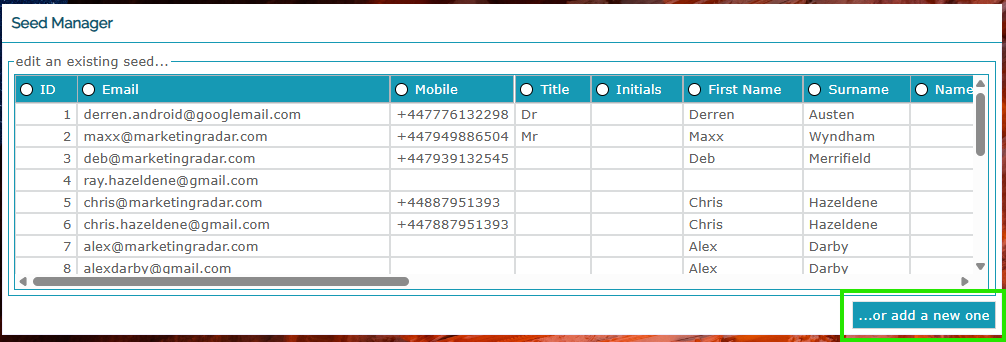
You can then add Seed emails for team members, test emails and test emails for different mail clients (ie gmail, Outlook, Apple) so that you are able to send tests to these emails. Click on '...or add a new one' to add a new email with details:
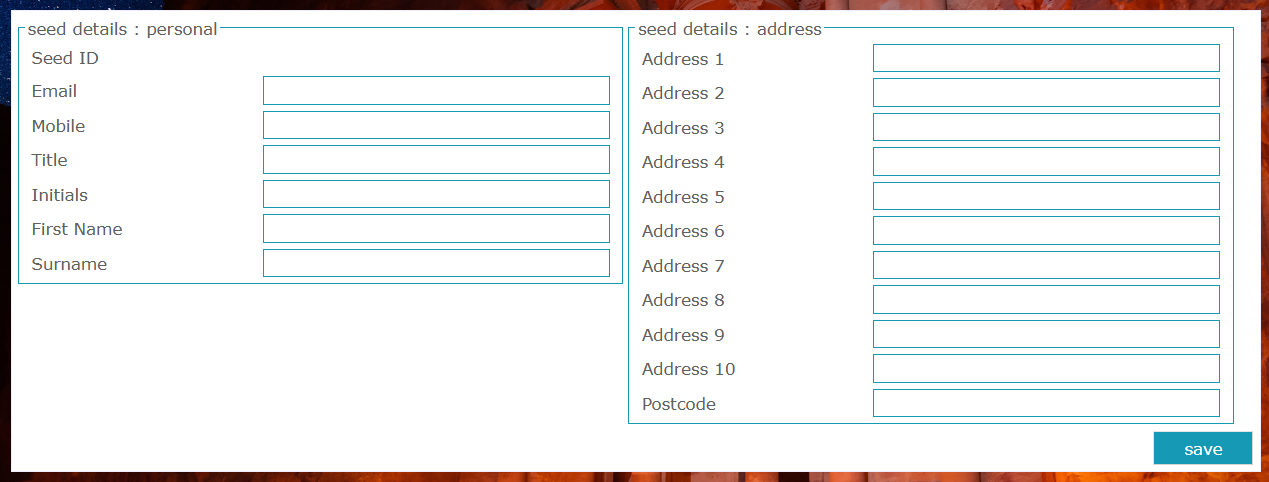
Here you can add all of the details that you need to include for your new Seed email - once all information has been added, simply save and they are then included in your seed list:
Add a new Seed Group or amending existing Seed lists
You can then group these emails depending on the team that needs sign off or the objective of that seed group:
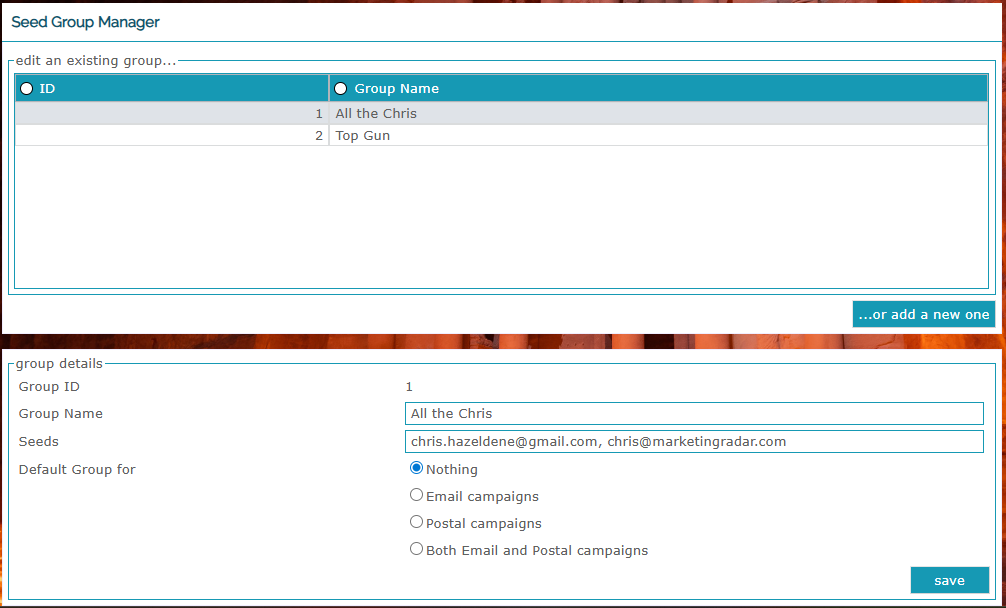
You can edit an existing group to add more seed emails by clicking on the 'seeds' email box - once added simply save:
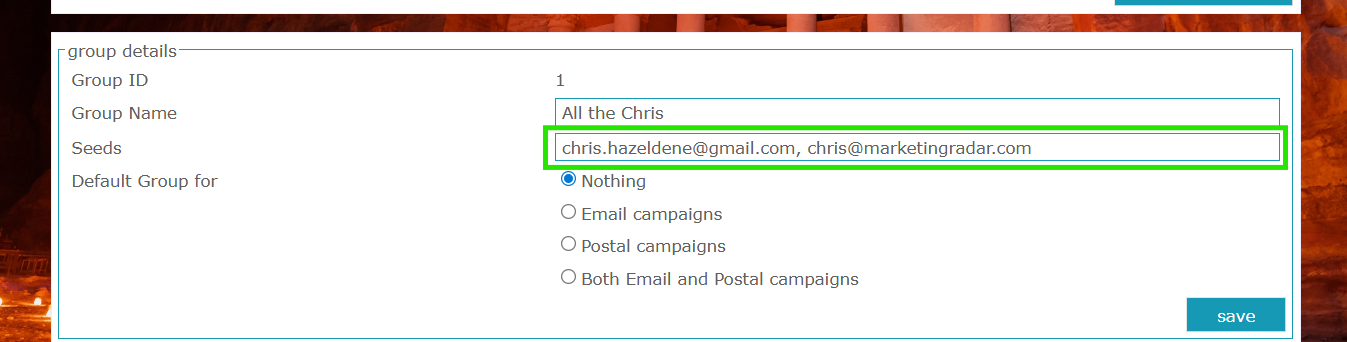
To add a new Seed group, click '...or add a new one' and enter the Group name and seeds you would like included. You do this by clicking 'Seeds'. Once in the seed list, all the seeds entered will appear and the ones you need can be added to your seed group. 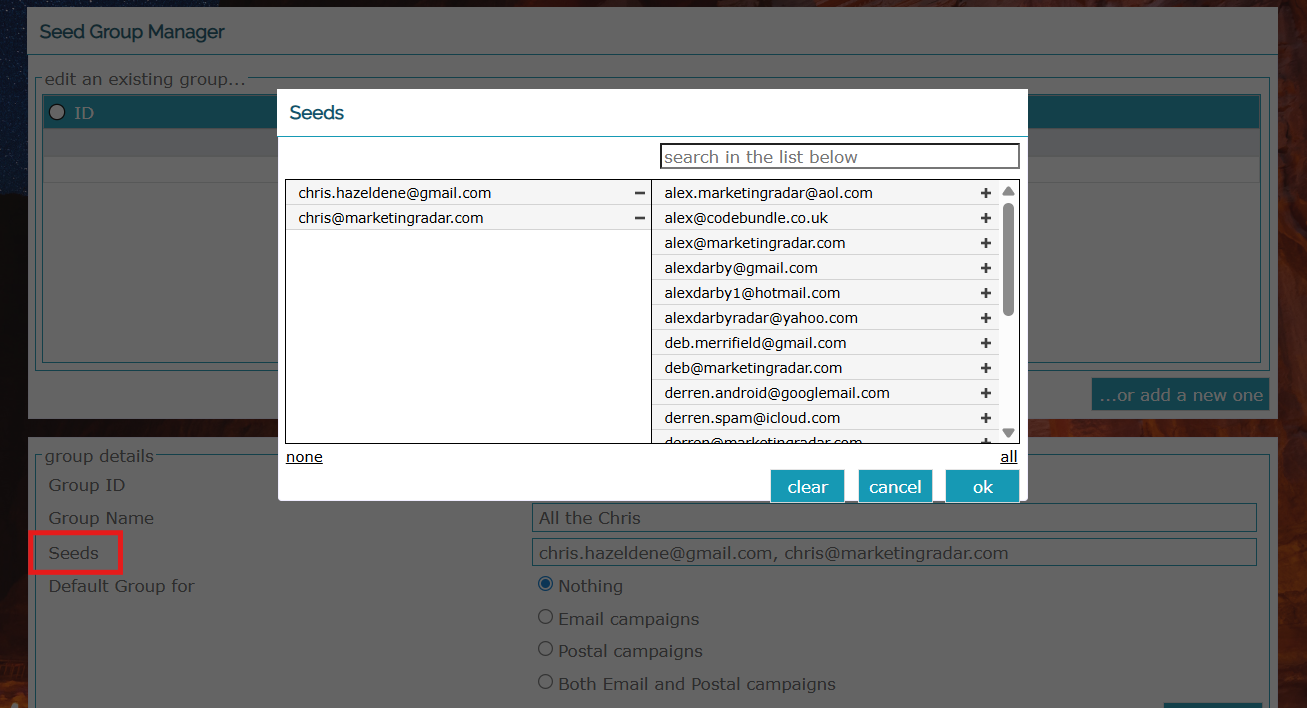
Was this article helpful?
That’s Great!
Thank you for your feedback
Sorry! We couldn't be helpful
Thank you for your feedback
Feedback sent
We appreciate your effort and will try to fix the article